Top games
 Adam and Eve GO
 One More Pass
 The Last Ninja
 Super Oliver World
 Super Craft Bros Runner
 Fireboy & Watergirl 6: Fairy Tales
 Princesses Prom Night
 Block Avalanche
 Ragdoll Arena 2 Player
 Angela Skin Doctor
 Rat Crossing
 Fly or Die
 Cool Snakes
 Cyber City
 Heroic Quest
 Defend The Tank
 Road Safety
 Foxy Land 2
 Kizi Kart
 Adam and Eve Go 3
 Custom Gun Creator
New
 Hero Dolls Pregnant BFFs
 Bubble Shooter Extreme
 Bike Racing
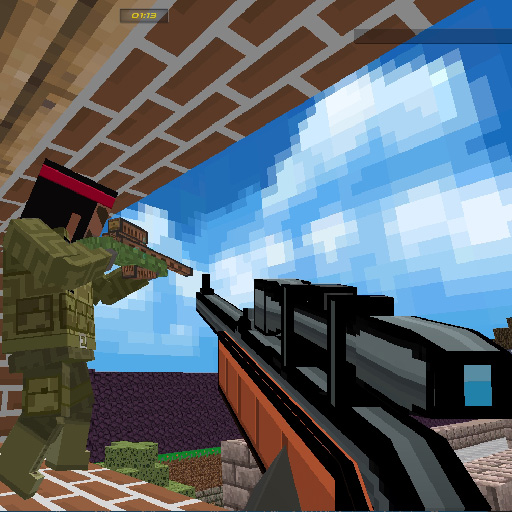 Pixel Gun Apocalypse 3
 Bake Time Pizzas
 Tiles of the Unexpected
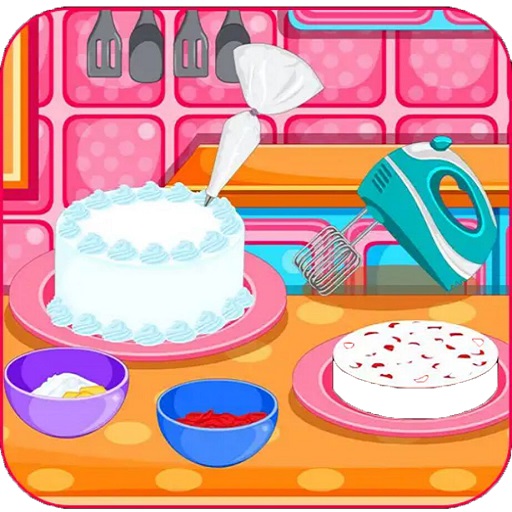 Baby Bake Cake
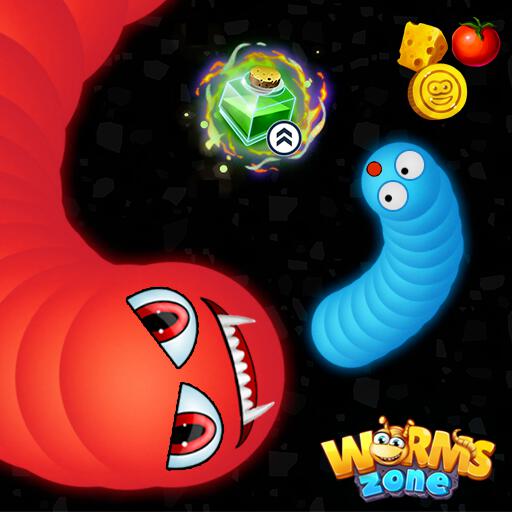 Worms Zone a Slithery Snake
 Wood Block Puzzle
 Cooking Mania Express
 Bomb It
 Lets Kill Jeff The Killer Jeffs Revenge 2020
 8 Ball Pool Challenge
 Police Traffic
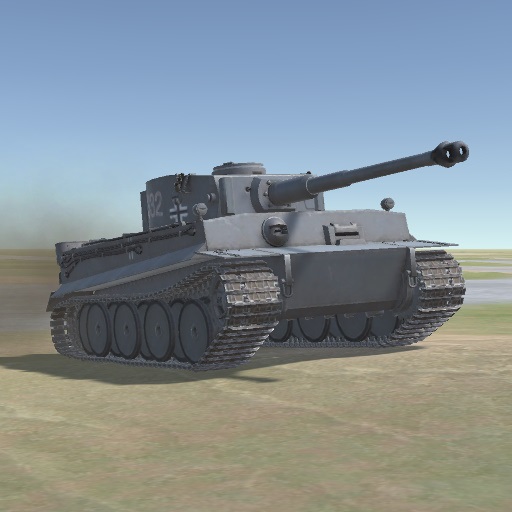 World of War Tanks
 Gothic Dress Up
 Craft World - Building Games
 Grindcraft
 Bubble Shooter HD
 Super Onion Boy
 Hero BFFs Pregnant Check up
 Pregnant Dotted Girl Emergency
 Gun Builder 2
 V8 Racing
 Stickman Archero Fight
 Pizza Party
 X Parkour
 Aquapark game
 HelloKids Coloring Time
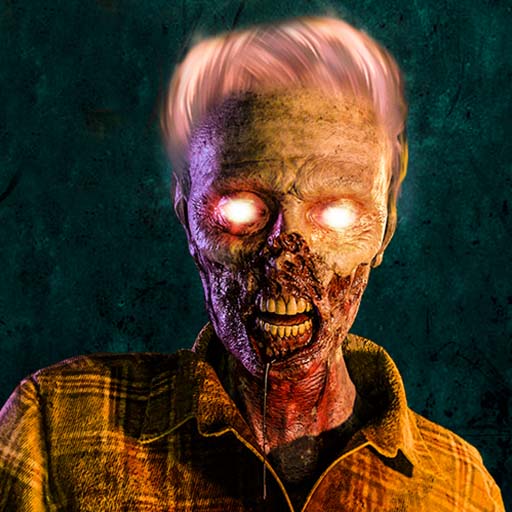 DEAD WARFARE Zombie Shooting Gun Games
 Basketball Machine Gun
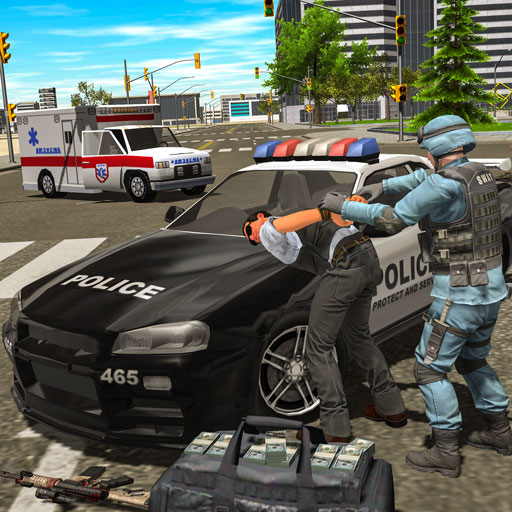 Police cop driver simulator
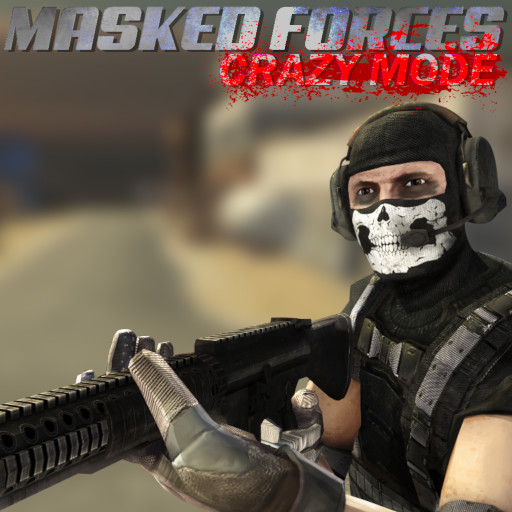 Masked Forces Crazy Mode
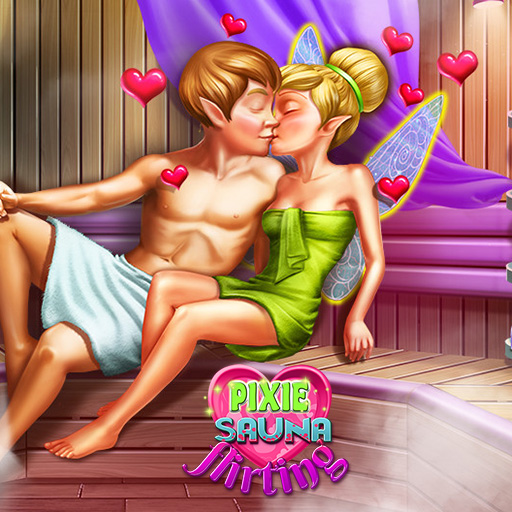 Pixie Sauna Flirting
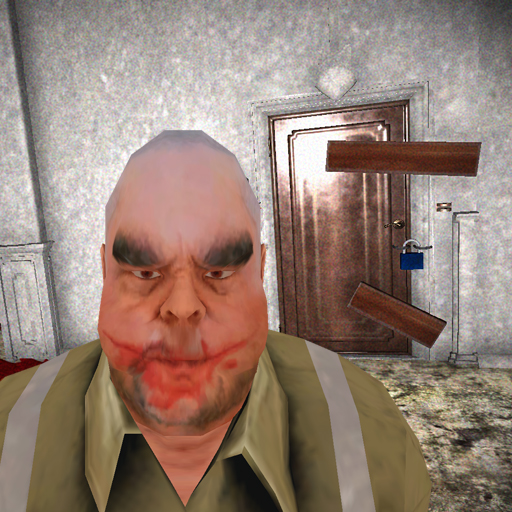 Mr Meat House Of Flesh
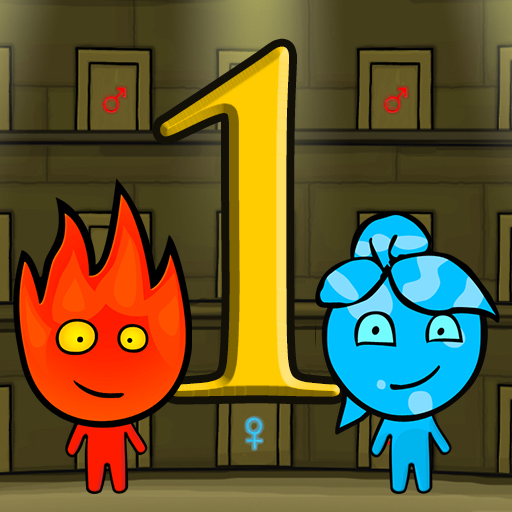 Fireboy and Watergirl 1 Forest Temple
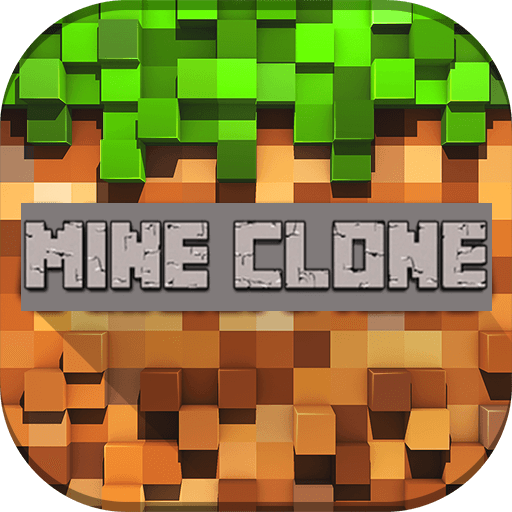 Mine Clone 4
 Fashionista Makeup & Dress Up
 Water Sorting Puzzle
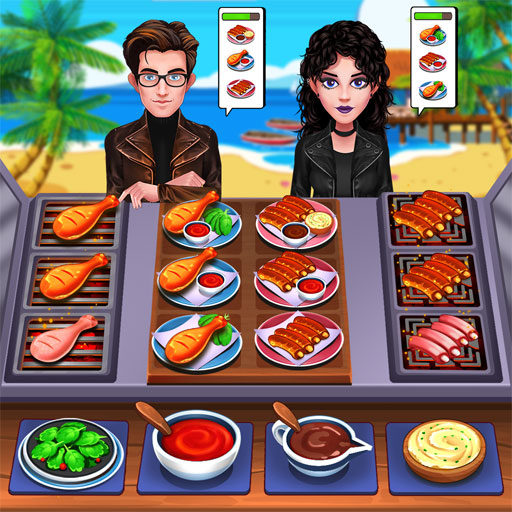 Cooking Chef Food Fever




Dress Up Games
View more Mermaid Princess Glossy Makeup
 Bride and Bridesmaides Dress up
 Ice Princess Roses Spa
 Crystal Gem Garnet Dress Up
 Tris Date Night Dolly Dress Up H5
 Couple Wedding Ceremony
 Mermaid vs Princess
 Girls Fashion Performance
 Equestria Girls Avatar Maker
 Goldie Princess Wedding H5
 Lady Popular
 Movie Star Daily Routine
 Sery Magazine Dolly Dress Up H5
 Dove Bridesmaid Dolly Dress Up H5
 Sery College Dolly Dress Up H5
 Ice Princess Fashion Day H5
 My Fashion Day Dress Up
 Tris Fashionista Dolly Dress up H5
 Summer Swimsuits Contest!
 Tris Homecoming Dolly Dressup H5
 Barbie Pregnancy Care
 eSport Gamer Tycoon
 Animegao Kigurumi DIY
 Sery Runway Dolly Dress Up H5
 Tris Superstar Dolly Dress Up H5
 Dragon Ball Super Bulma Dress Up
 Princesses On Red Carpet
 Mermaid Melody
 Sery Prom Dolly Dress Up H5
 Princesses Bridal Salon
 Sery Date Night Dolly Dress Up H5
 BFF Celebrity Night
 Highschool Prom
 Draculaura Swimsuits
 Princess Team Bohemian
 My Casual Life Dressup
 Dove Prom Dolly Dress Up H5
 Pregnant Kitty Spa
 Bathing Spa Pregnant Queen
 Annie Dress Design
Car Games
View more Parking Fury 2
 Car Chase
 Mad Cop Police Car Race :Police Car vs Gangster Escape
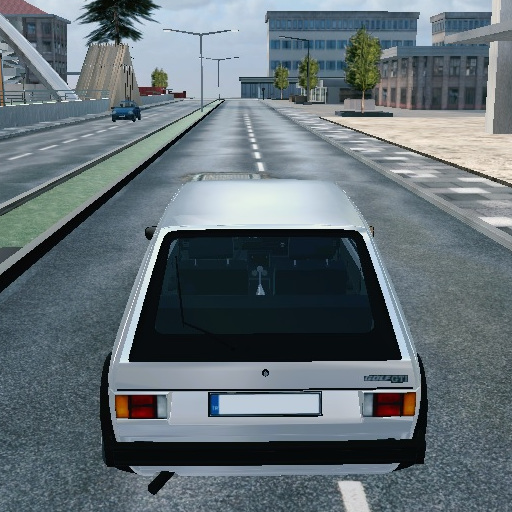 City Car Simulator
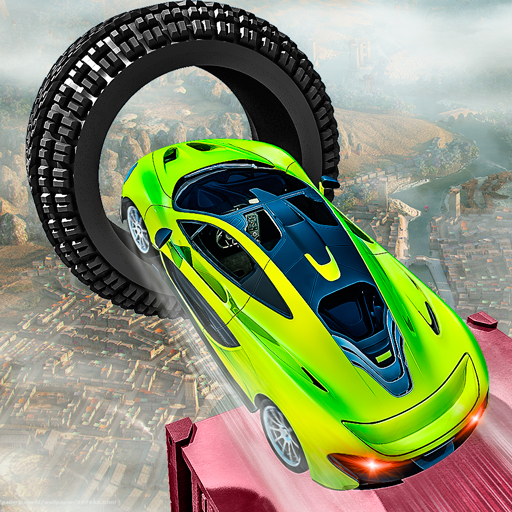 Crazy Car Racing Stunts 2019
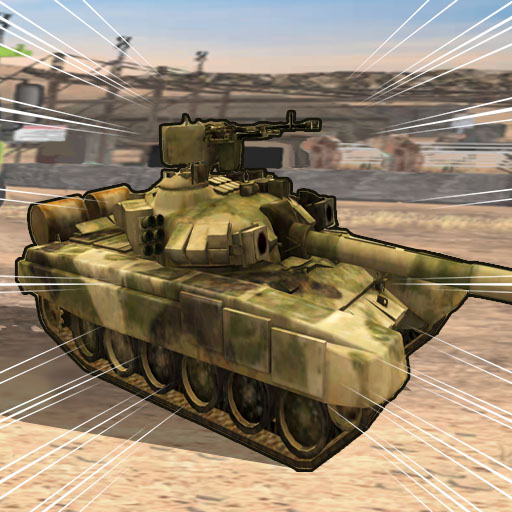 US Army Vehicle Transporter Truck
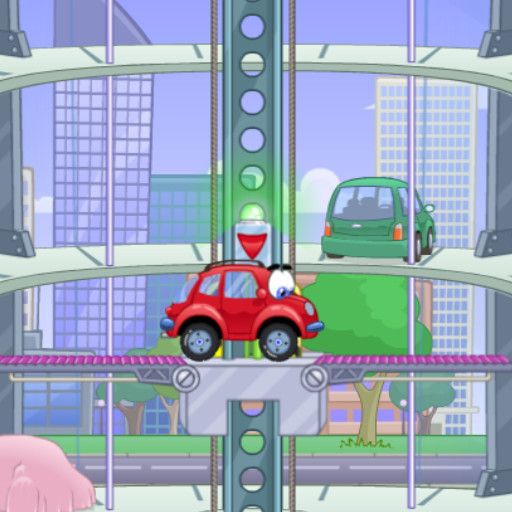 Wheely 2
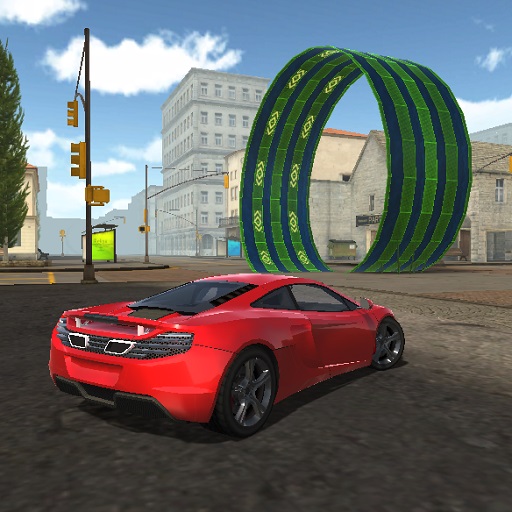 City Stunts
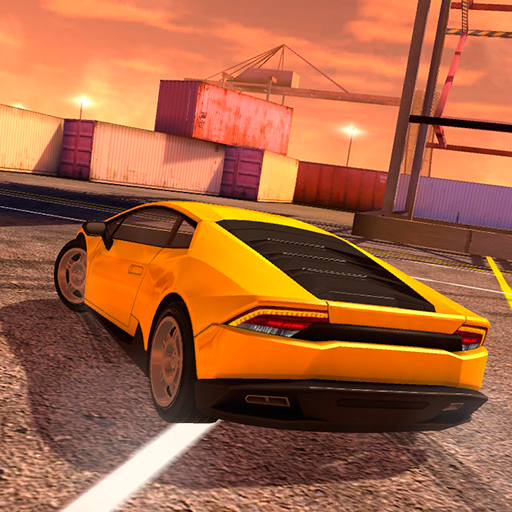 Lamborghini drift simulator
 Offroad Snow Jeep Passenger Mountain Uphill Driving
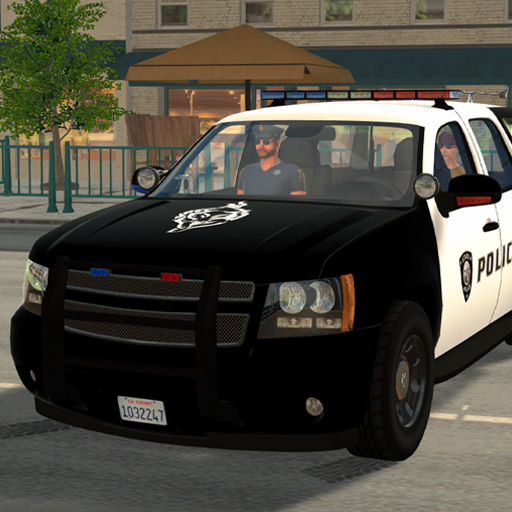 American Police SUV Simulator
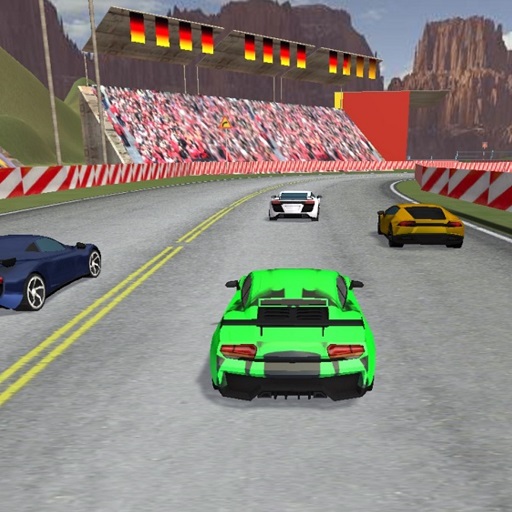 Xtreme Stunts Racing Cars 2019
 Slot Car Racing
 Flying Car Game Police Games
 Street Racing 2D
 Gangster Shooting Police Game
 Cars Simulator
 Real Drift Multiplayer 2
 Tank Off
 Wheely 6
 Turbo Dismounting
 Desert Robbery Car Chase
 Car Wash Unlimited
 Hammer
 Parking Fury 1
 Helicopter And Tank Battle Desert Storm Multiplayer
 Car Simulation Game
 Police Car Simulator
 Drift Cars
 Hill Climb Racing 2
 Traffic Rider
 Sports Car Drift
 Cars Coloring Game
 Dockyard Car Parking
 Sports Cars Slide
 Julio Police Cars
 Drifty Race
 Elite Racing
 CarFight.io
 Super 8 race
Cooking Games
View more Cooking Fast: Hotdogs And Burgers Craze
 Cherry Blossom Cake Cooking
 Princesses Burger Cooking
 Cindy Cooking Cupcakes
 Cooking Fast 3 Ribs And Pancakes
 Cooking In The Kitchen
 Bake Time Hot Dogs
 Cooking Fast 4 Steak
 Burger
 Cook Chinese Food Asian Cooking
 Hot Dog Bush
 Cooking Fast Halloween
 Cooking Madness Game
 Mutton Biryani: Sara's Cooking Class
 Pie Realife Cooking
 Strawberry Delicious Boutique!
 Penguin Cafe
 Berry Cheesecake: Sara's Cooking Class
 Pizza maker cooking and baking games for kids
 Jumping Burger
 Prom Queen and King
 Sara's Cooking Class: Caramel Brownie
 Ice-O-Matik
 Pizza Realife Cooking
 Pizza Ninja
 Spinach Rotolo: Sara’s Cooking Class
 Sara's Cooking Class: Upside Down Cake
 Cooking Scene
 Princess Make Donut
 Carrot Cake
 Sweet Donut Maker Bakery
 Cupcake Shop
 Cooking Battle
 Restaurant and Cooking
 Maggie Bread Rush
 Pumpkin Ice Cream
 The Smurfs Cooking
 Cooking Festival
 Avocado Toast Instagram
 Homemade Pizza Cooking
Puzzle Games
View more Guess the Kitty
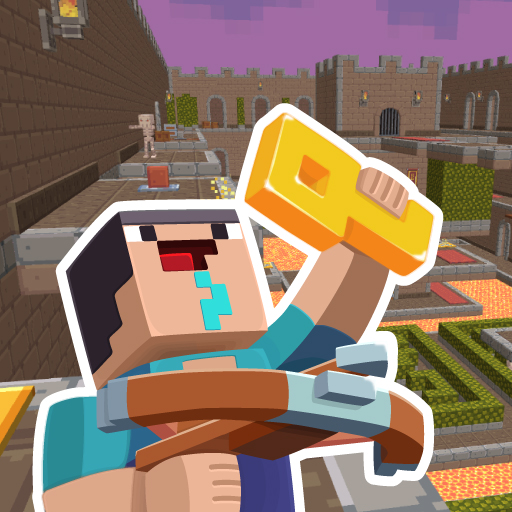 Noob: Zombie Prison Escape
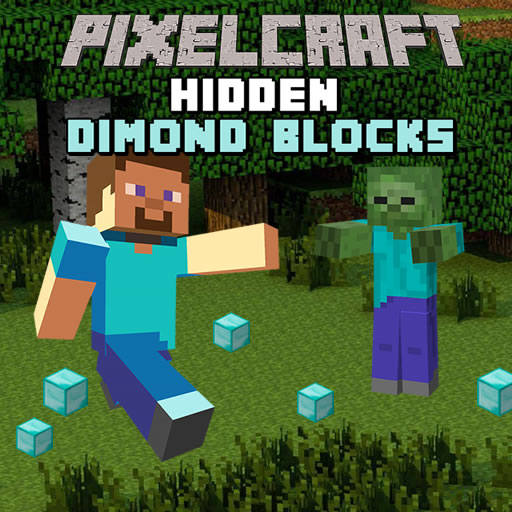 Pixelcraft Hidden Diamond Blocks
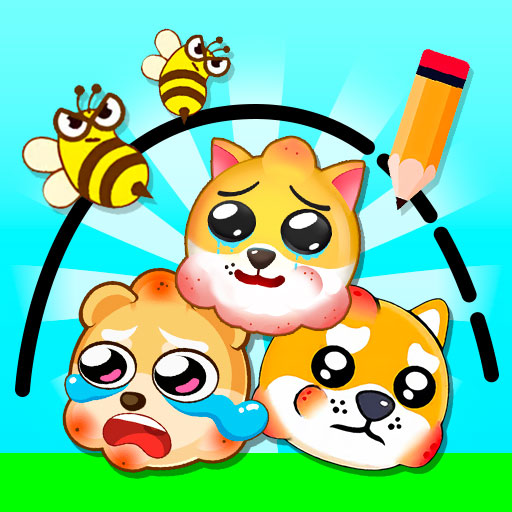 Protect My Dog 3
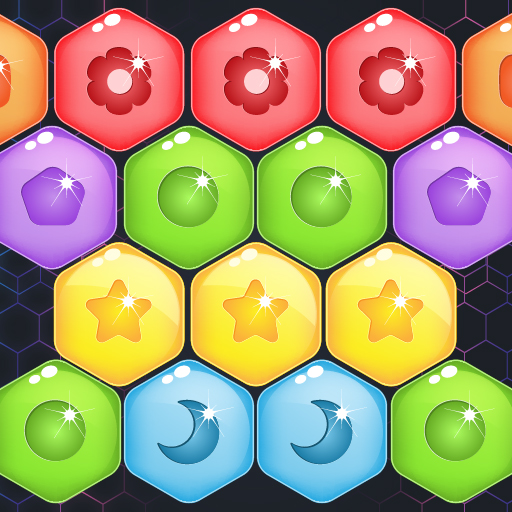 Sweet Candy Hexa Puzzle
 Help Stickman Burn
 Snake Attack
 DOP Stickman - Jailbreak
 Super Pony World
 Butterfly Kyodai
 Five Nights at Christmas
 Sweet Kitty Memory Challenge
 Chain Cube 2048 3D
 Zoo Tile - Match Puzzle Game
 Wild Animals Memory
 HexaLau
 Hexagon
 X2 Block Match
 Hangman Capitals Cities
 Zoo Trivia
 New Daily Sudoku
 Matching Pattern
 Castle Puzzle
Sports Cars Slide
Castle Puzzle
Sports Cars Slide
 Mine Survival
 Spirit of the Ancient Forest
 Anime Girl With Gun Puzzle
 Kid Maestro
 Rotate
 Escape
 Blocks Puzzle
 Jewels Blocks Puzzle
 Choli Sky Jump
 Block Craft
 Parking Rush
 2048 Merge
 Guess the Name Hangman
 Blocky Gun 3D Warfare Multiplayer
 Peugeot 208 Puzzle
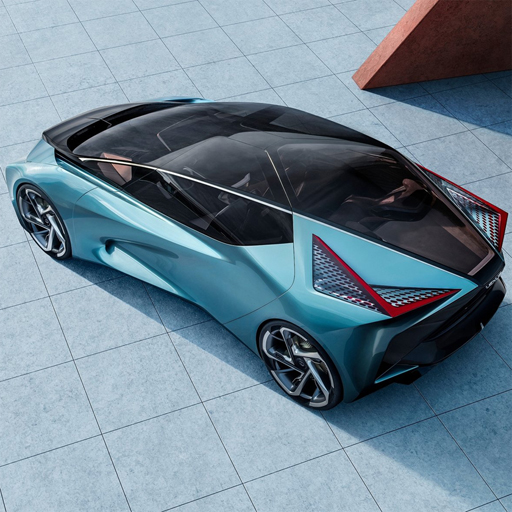 Lexus LF30 Electrified Puzzle
Superhero Games
View more Shoot The Box
 Good vs Bad Girl
 Pixel Art 2
Gangster Shooting Police Game
Pixel Art 2
Gangster Shooting Police Game
 Stick Hero
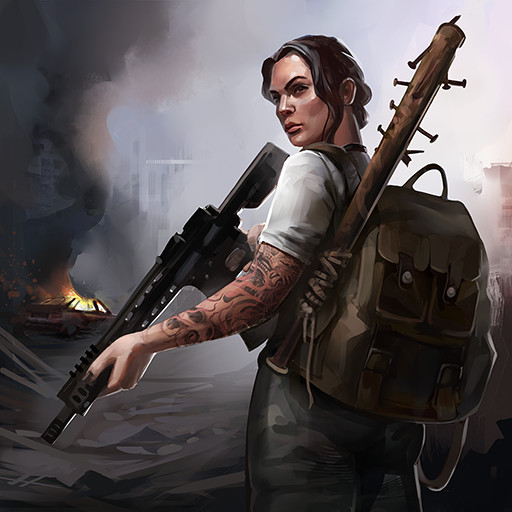 Doomsday Hero
 Hero Vs Villain!
Hammer
Hero Vs Villain!
Hammer
 Dotted Girl Throat Doctor
 Dotted Girl Family Day
 Streets Of Anarchy: Fists Of War
 Weapon.io
 Cycling Hero
 Punch Superhero
 City Public Cycle Rickshaw Driving Simulator
 Kung Fu Fury
 Swing City
Sweet Donut Maker Bakery
Swing City
Sweet Donut Maker Bakery
 Ladybug Maternity Deco
 Superhero Spring Dress up!
 Rugby Down Heroes
 The Gladiators
 Kawaii Superhero Avatar Maker
 Marinette Vs Ladybug
 Flip Hero
 Balloon Hero 2
 Swat vs Zombies
 Ancient Fighters
 Lizard Lady vs Herself
 Hero Masters
 Angry Heroes
 Dotted Girl Vaccines Injection
 Gun Masters
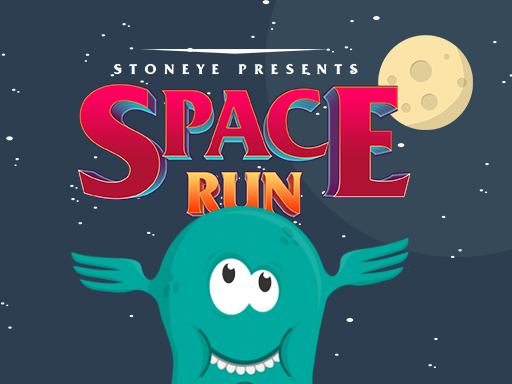 Space Run
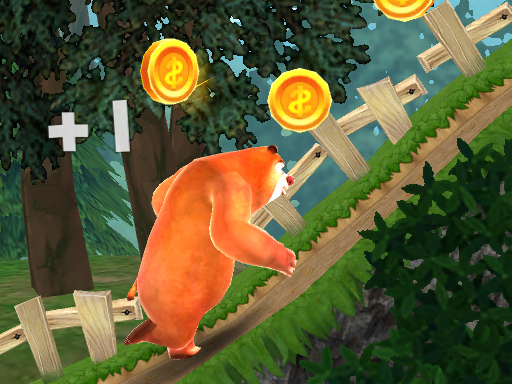 Bears Adventures
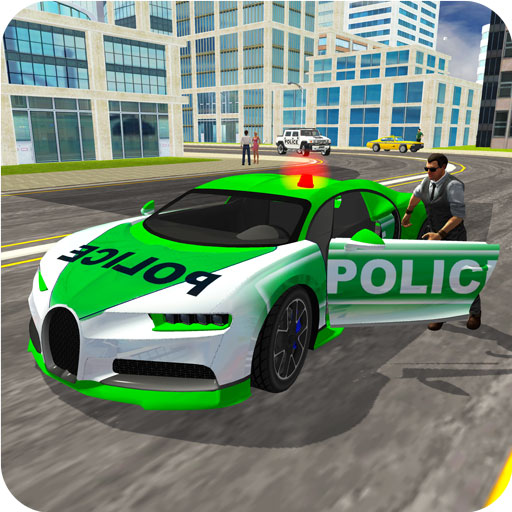 Police Chase Real Cop Driver
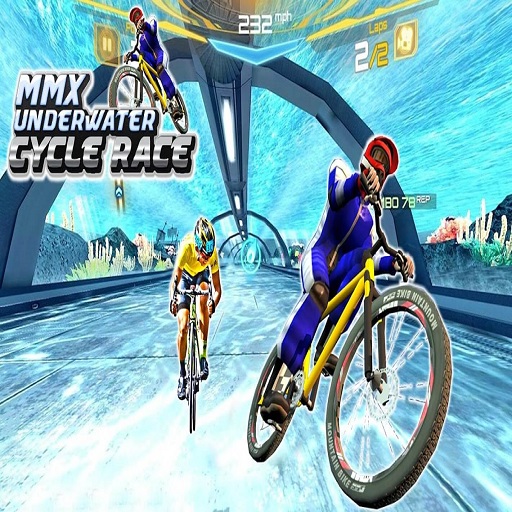 Underwater Bicycle Racing Tracks : BMX Impossible Stunt
 Destroy The Virus
 ATV Quad Bike Taxi Game
 Animal Rescue Robot Hero
Cartoon Games
View more Color Numbers
Cherry Blossom Cake Cooking
Crystal Gem Garnet Dress Up
Color Numbers
Cherry Blossom Cake Cooking
Crystal Gem Garnet Dress Up
 Mob City
 Preganat Kitty Room Decor
Pixel Art 2
Preganat Kitty Room Decor
Pixel Art 2
 Love Balls
 Year Round Fashionista Curly
Super Pony World
Year Round Fashionista Curly
Super Pony World
 Diamond Colors Art
 Dragon Battles Multiplayer
 Color by Number 3D
 Draw Leg
 Protect My Dog
 Icing On The Cake
 Coloring by numbers
Cars Coloring Game
Coloring by numbers
Cars Coloring Game
 Pixel Color Kids
 Princess Doll House Decoration
 Baby Supermarket
Parking Rush
Baby Supermarket
Parking Rush
 Baby Princess Bedroom
 Happy Glass Online
 Didi & Friends Coloring Book
 Nail Art Fashion Salon
 Princess Doll Christmas Decoration
 Pregnant Princess Caring
 Hair Shuffle
 Draw and Save Stickman
 BFF Fest Festival
 Pixel by Numbers
 Make A Roller Coaster
 Incredible Princess Eye Art
 Super Spy Agent 46
 Bubble Shooter Lof Toons
 Princess Dede Sweet Cake Decor
 Princess Spa Day
 Design Your Monster High Backpack
 Princess Wedding Cake
 Princess Bridal Shower Party




Adventure Games
View more
Noob: Zombie Prison Escape
 Slendrina Must Die: The Forest
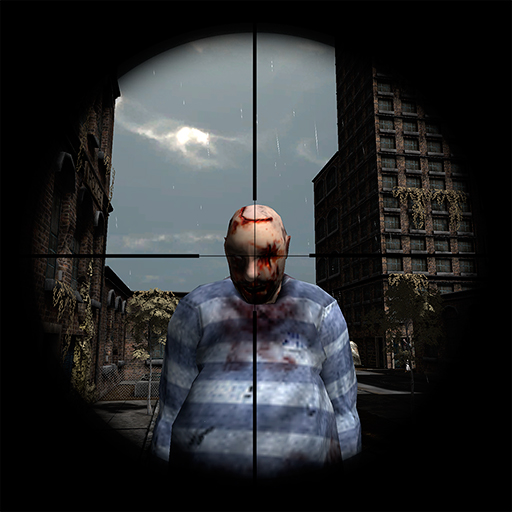 Sniper 3D City Apocalypse
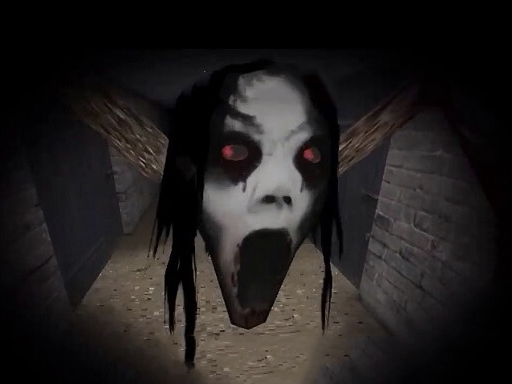 Scary Granny: Basement Escape
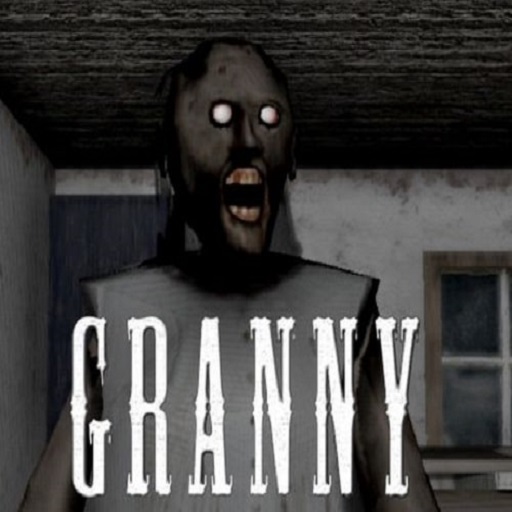 Scary Granny : Horror Granny Games
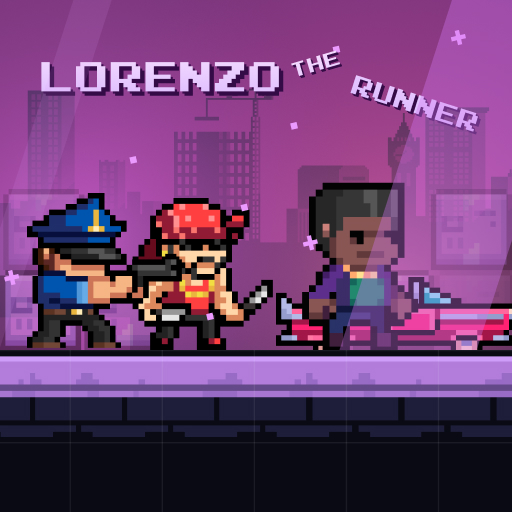 Lorenzo the Runner
 Poppy Survive Time: Hugie Wugie
 Granny Horror Village
 Evil Non Scary Horror Game Adventure
 Red Ball
Wheely 2
Red Ball
Wheely 2
 Noob Fuse
 Super Billy Boy
 Draw 2 Save - Stickman Rescue
 Let's Kill Jane The Killer: Don't Go to Sleep
 Maze of Death
 Snail Bob 2 html5
 Tomb of the Mark 2
 Furious Adventure 2 trap
 Alone II
 Airplane Missile Escape
 Red Ball Bounce
 Poppy Time
 Siren Head Sound of Despair
 Squid Challenge Glass Bridge
Equestria Girls Avatar Maker
Squid Challenge Glass Bridge
Equestria Girls Avatar Maker
 Steve on the platform
Flying Car Game Police Games
Super Pony World
Steve on the platform
Flying Car Game Police Games
Super Pony World
 Evil Granny: Horror Village
Five Nights at Christmas
Tank Off
Wheely 6
Evil Granny: Horror Village
Five Nights at Christmas
Tank Off
Wheely 6
 Foxy Land
 Slendrina Must Die: The House
 Jacks Village
 Mine Cave Hidden Stars
 LAST NIGHT
 Creepy Basement Escape Episode 2
 Brawl Stars Leon Run
Racing Games
View more
Parking Fury 2
Car Chase
 Night Neon Racers
Mad Cop Police Car Race :Police Car vs Gangster Escape
Night Neon Racers
Mad Cop Police Car Race :Police Car vs Gangster Escape
 Moto X3M Bike Race Game
Crazy Car Racing Stunts 2019
US Army Vehicle Transporter Truck
City Stunts
Offroad Snow Jeep Passenger Mountain Uphill Driving
Xtreme Stunts Racing Cars 2019
Moto X3M Bike Race Game
Crazy Car Racing Stunts 2019
US Army Vehicle Transporter Truck
City Stunts
Offroad Snow Jeep Passenger Mountain Uphill Driving
Xtreme Stunts Racing Cars 2019
 Dirt Bike Stunts 3D
Slot Car Racing
Dirt Bike Stunts 3D
Slot Car Racing
 Moto Road Rash 3D
Street Racing 2D
Moto Road Rash 3D
Street Racing 2D
 City Passenger Coach Bus Simulator Bus Driving 3D
Real Drift Multiplayer 2
City Passenger Coach Bus Simulator Bus Driving 3D
Real Drift Multiplayer 2
 A Maze Race
 Impossible Bike Race: Racing Games 3D 2019
 Euro Truck Simulator Cargo Truck Drive
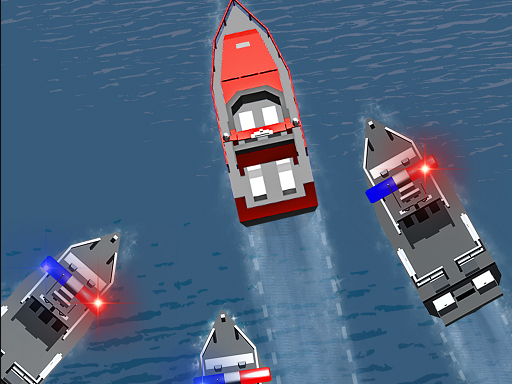 Police Boat Chase
Parking Fury 1
Drift Cars
Hill Climb Racing 2
Traffic Rider
Sports Car Drift
Police Boat Chase
Parking Fury 1
Drift Cars
Hill Climb Racing 2
Traffic Rider
Sports Car Drift
 Maserati Gran Turismo 2018
Dockyard Car Parking
Julio Police Cars
Drifty Race
Maserati Gran Turismo 2018
Dockyard Car Parking
Julio Police Cars
Drifty Race
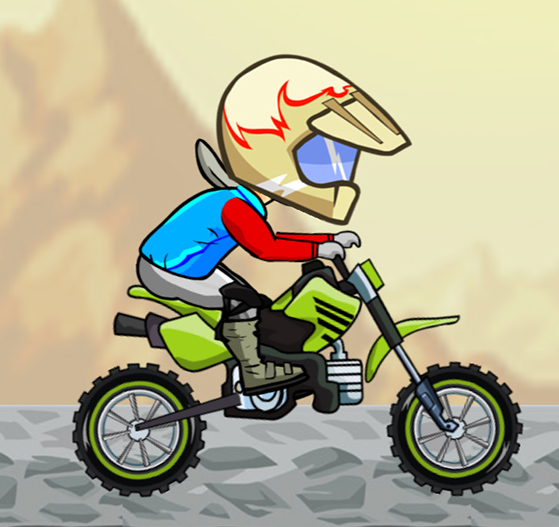 Riders Feat
Elite Racing
Super 8 race
Riders Feat
Elite Racing
Super 8 race
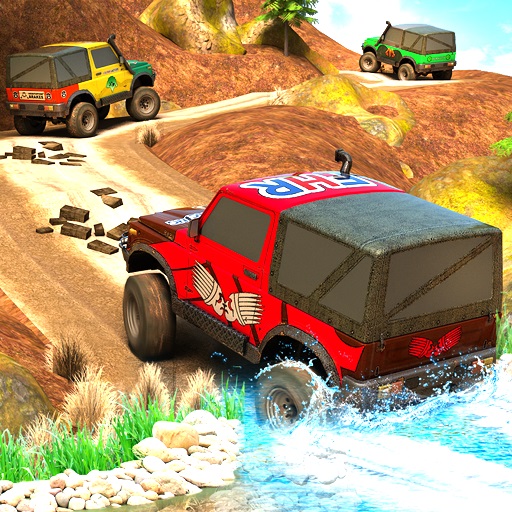 Offroad Jeep Driving Adventure: Jeep Car Games
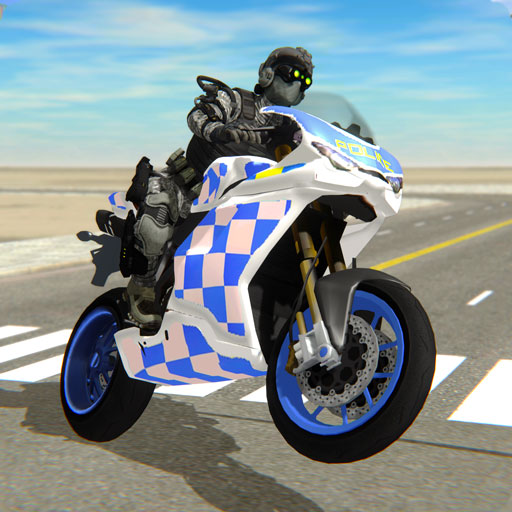 Police Bike City Simulator
 MotorBike Racer 3D
 Parking Fury 3D: Night Thief
 Dirt Bike Extreme Parkour
Cycling Hero
Dirt Bike Extreme Parkour
Cycling Hero
 Real Impossible Track 2
 City Taxi Driver Simulator : Car Driving Games
War Games
View more Combat Strike Multiplayer
 Assault Zone
 Archery War
 Rebel Attack Shooter
 Age of War
 City Wars
 Tank Forces: Survival
 Combat Rescue Officer
 Boat Battles
eSport Gamer Tycoon
Boat Battles
eSport Gamer Tycoon
 Battleship War
 War Zone
 World Tank Wars
 Air Fight
 Battle Tank
 CS War Gun King FPS
 Bullet Party
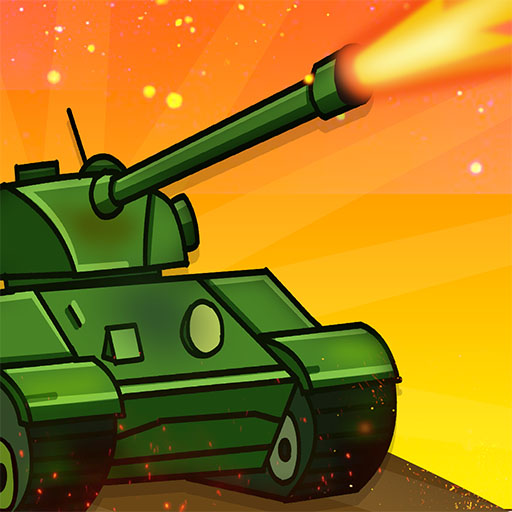 Armour Clash
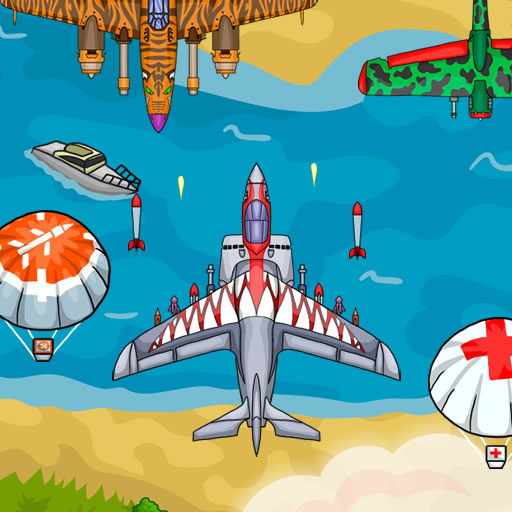 Air Force Attack
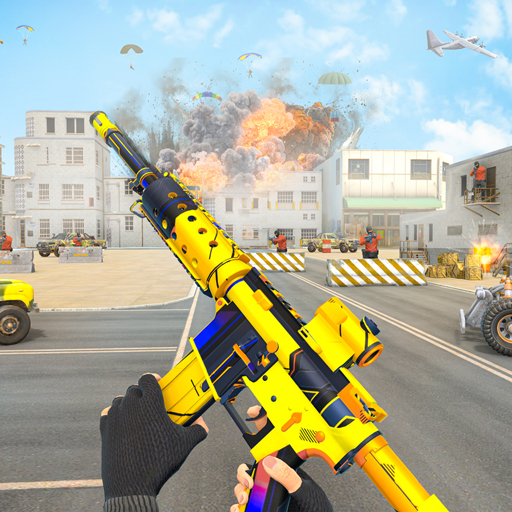 TPS Gun War Shooting Games 3D
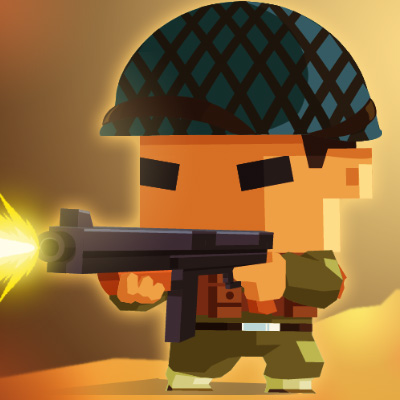 Blocky Squad
 Submarines EG
 Air War 1941
 Air Force Fight
 Warfare Area
 GUN NIGHT.IO
 Tank Defender
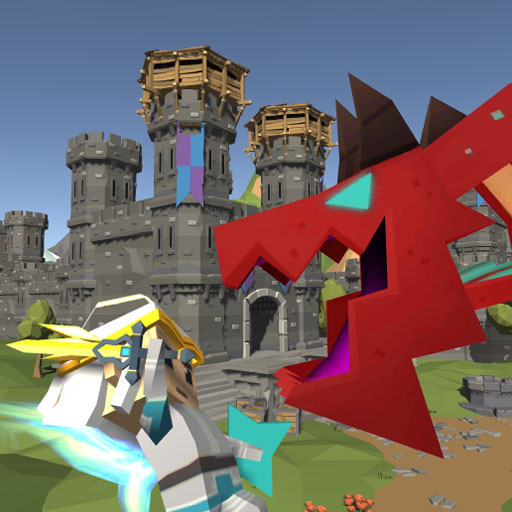 Blocky Fantasy Battle Simulator
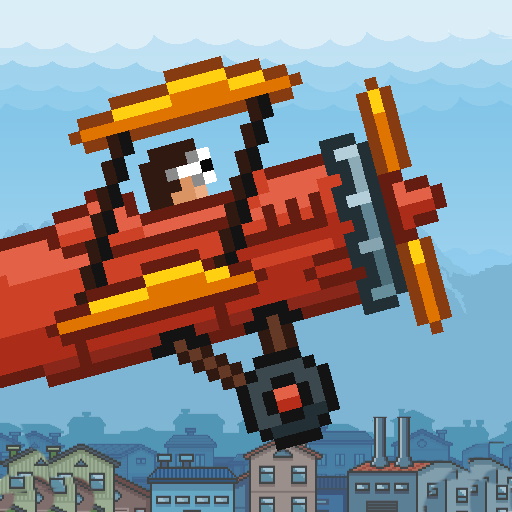 Air Strike
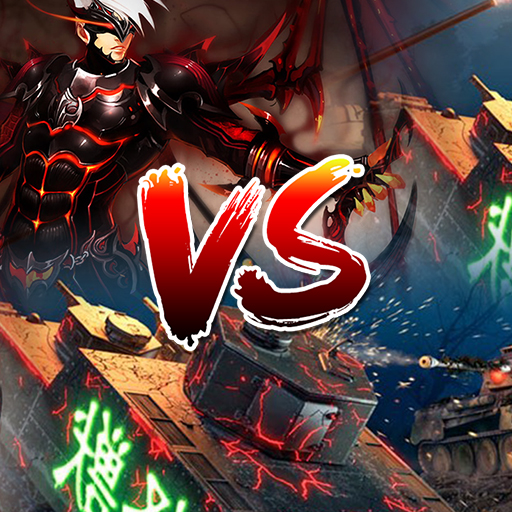 Tank VS Demons
 Air War 1942 43
 Tanks in Action
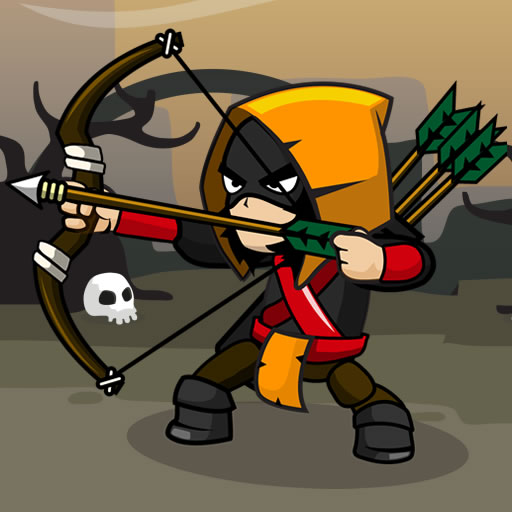 Kingdom Defense
 Tank Fury
 STOP Trump vs Kim Jong-Un
 Snow Battle
 Defense of the Tank
 Zombie Typer
 Arnie Attack
 Crowd City War
Fighting Games
View more The Spear Stickman
 EG Rpg Fight
 Stickman Warrior Fatality
 Draw Joust
 F22 Real Raptor Combat Fighter Game
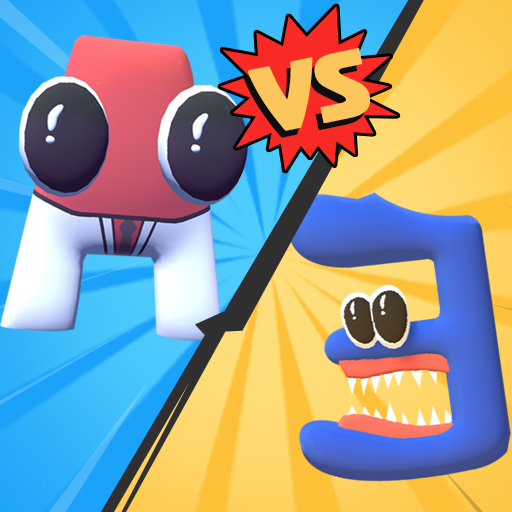 Merge Alphabet 3D
 Air Dogs of WW2
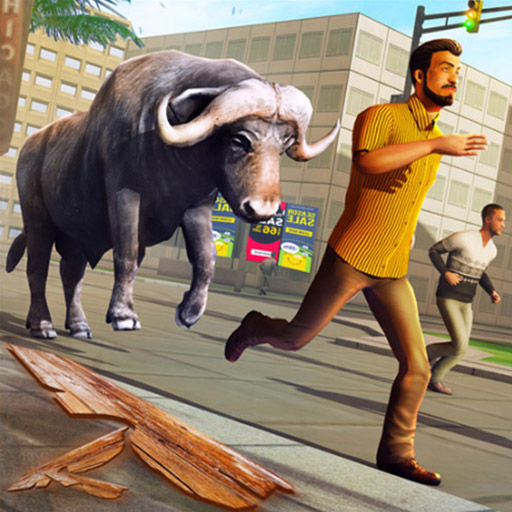 Angry Bull Attack Wild Hunt Simulator
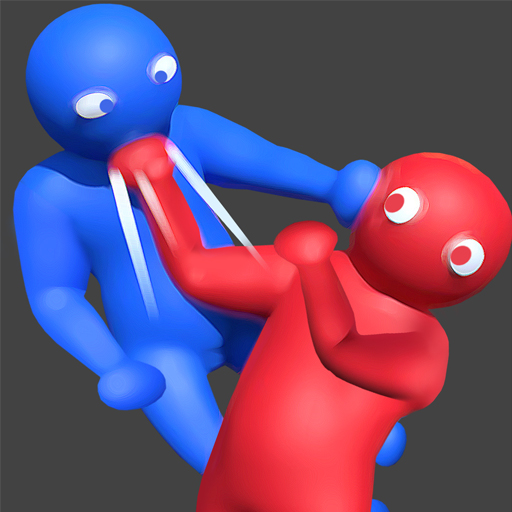 Grab Party.io
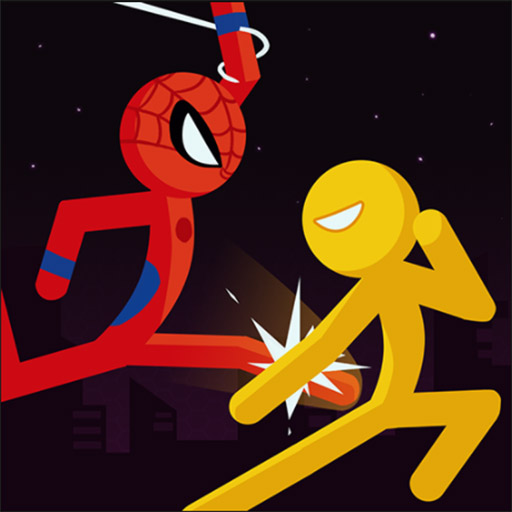 Police Stick man wrestling Fighting Game
 Soldiers Combat
 Tornado.io
Streets Of Anarchy: Fists Of War
Tornado.io
Streets Of Anarchy: Fists Of War
 Fighter Manager
 Wrestling
CarFight.io
Wrestling
CarFight.io
 Fall Boys Ultimate Knockout
 Stickman Punch
 Stickman Fighting 2 Player
 Ninja Warrior Shadow of Last Samurai
 Knight 360
 BombEm
 Real Shooting Fps Strike
 Ultimate Boxing Game
 Epic Robot Tournament
 Kung Fu Fight : Beat 'em up
 Tank Heroes
 Kung Fu Street
Swat vs Zombies
Ancient Fighters
Kung Fu Street
Swat vs Zombies
Ancient Fighters
 Counter City Strike Commando Action 2020
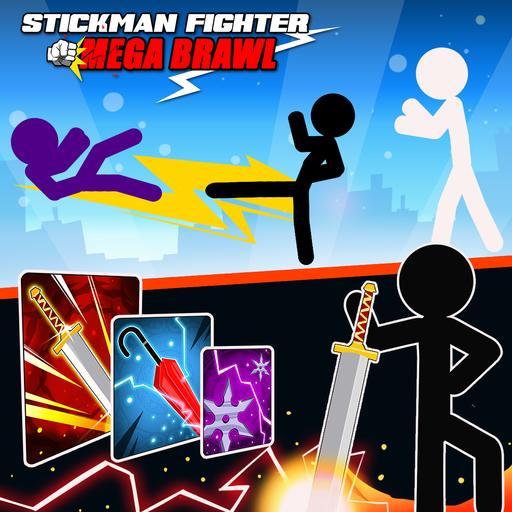 Stickman Fighter : Mega Brawl
GUN NIGHT.IO
Stickman Fighter : Mega Brawl
GUN NIGHT.IO
 Stickman Fighter 3D Fists Of Rage
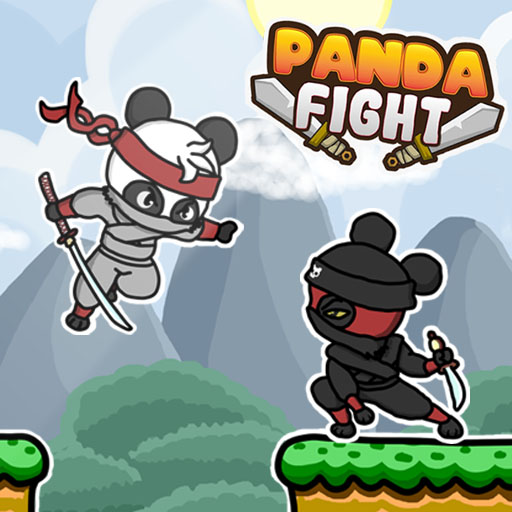 Panda Fight
 Shadow Ninja Revenge
 Puppet Football Fighters
 Final Night Zombie Street Fight
 Pro Wrestling Action
 Goldblade Water Adventure




Sports Games
View more Penalty Challenge
 Basketball Legends 2020
Mad Cop Police Car Race :Police Car vs Gangster Escape
Basketball Legends 2020
Mad Cop Police Car Race :Police Car vs Gangster Escape
 2018 Soccer Cup touch
 8 Ball Billiard Pool
 Archery
 Pool Club
 Classic Bowling Game
 Ping Pong
 Bowling Masters
 Moto Maniac 3
 Stickman Golf Online
Tank Off
Stickman Golf Online
Tank Off
 Adam and Eve: Golf
 100 Metres Game
Turbo Dismounting
100 Metres Game
Turbo Dismounting
 Pool 8 Ball
 Flicking Soccer
 Tennis Ball
 Stickman Boxing KO Champion
 Football Players Bus Transport Simulation Game
Cycling Hero
City Taxi Driver Simulator : Car Driving Games
Football Players Bus Transport Simulation Game
Cycling Hero
City Taxi Driver Simulator : Car Driving Games
 Golf
Golf
 Super Cricket
 Pro Gym
 Kick Ups
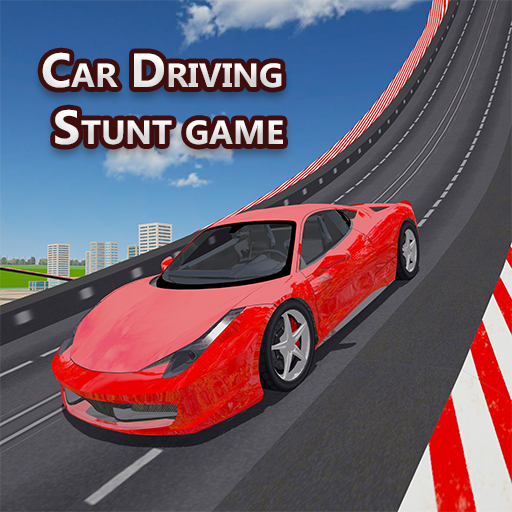 Car Driving Stunt Game
 Archery Mania
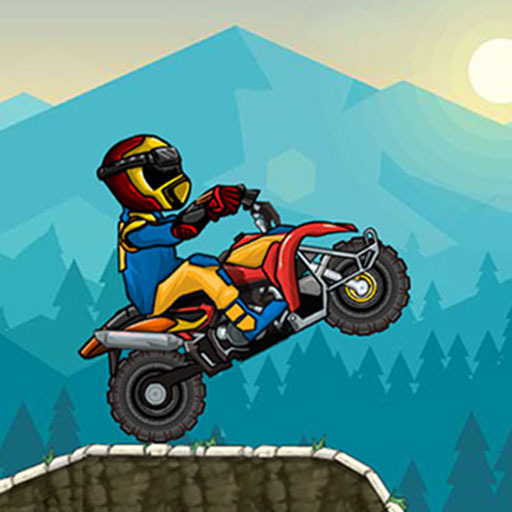 Sports Bike Challenge
Rugby Down Heroes
Sports Bike Challenge
Rugby Down Heroes
 Cricket Fielder Challenge Game
 Hurdle Rush
 Basket Ball Run
 Pocket Pool
 Soccer Heroes
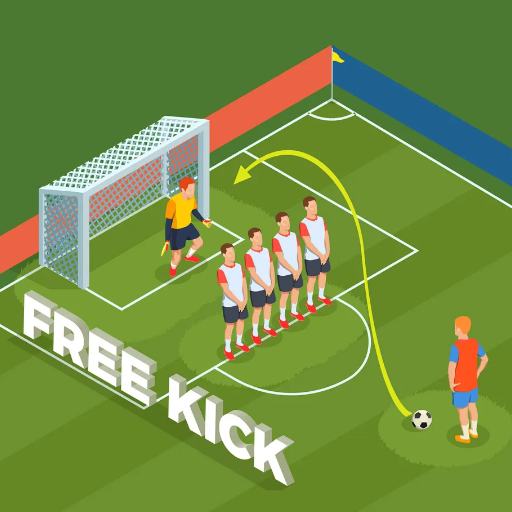 Soccer Free Kick
 Speed Pool King
Ultimate Boxing Game
Speed Pool King
Ultimate Boxing Game
 Ultimate Golf
Escape Games
View more
Noob: Zombie Prison Escape
Scary Granny: Basement Escape
Scary Granny : Horror Granny Games
Mad Cop Police Car Race :Police Car vs Gangster Escape
Poppy Survive Time: Hugie Wugie
Granny Horror Village
Draw 2 Save - Stickman Rescue
Furious Adventure 2 trap
Alone II
Airplane Missile Escape
Poppy Time
Squid Challenge Glass Bridge
Evil Granny: Horror Village
Foxy Land
Creepy Basement Escape Episode 2
 Princess Juliet Fashion Trouble
eSport Gamer Tycoon
Princess Juliet Fashion Trouble
eSport Gamer Tycoon
 Blue Warehouse Escape Episode 2
 Play Time - Toy Horror Store
 Mineworld Horror
City Taxi Driver Simulator : Car Driving Games
Mineworld Horror
City Taxi Driver Simulator : Car Driving Games
 Squidly Game
 Caterpillar Crossing
 Mouse
Mouse
 Forest Village Getaway Episode 1
 Jump Jump Puzzle
 Lost In Dimensions: The Beginning
 Photo Escape
 Prison Escape
 Squidly Game 123 Stop
 Squidly Game Hide And Seek
 Skibidi Toilet Haunted Dorm
 Blue Warehouse Escape Episode 1
 Jelly Escape
 Robo Twins
 Xtreme Monster Truck Offroad Racing Game
 Teen Runner
 Let Me Out Escape
 Heroball Adventures
 Slendrina X The Dark Hospital
Arcade Games
View more Bubble Shooter
Combat Strike Multiplayer
Night Neon Racers
Bubble Shooter
Combat Strike Multiplayer
Night Neon Racers
 Classic Spider Solitaire
Shoot The Box
Classic Spider Solitaire
Shoot The Box
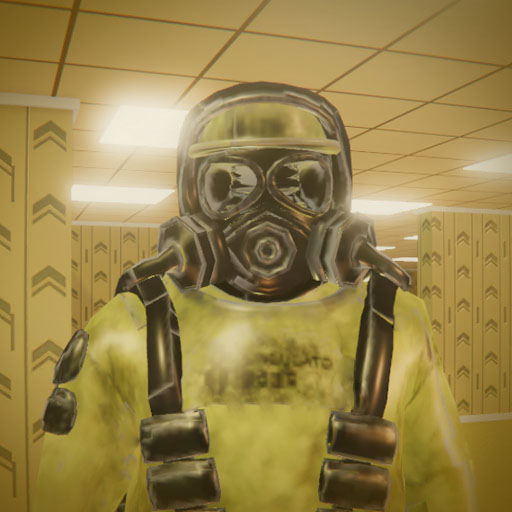 Backrooms Escape 1
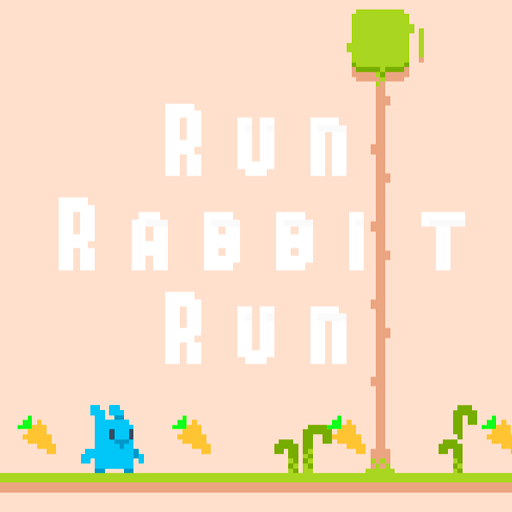 Run Rabbit Run
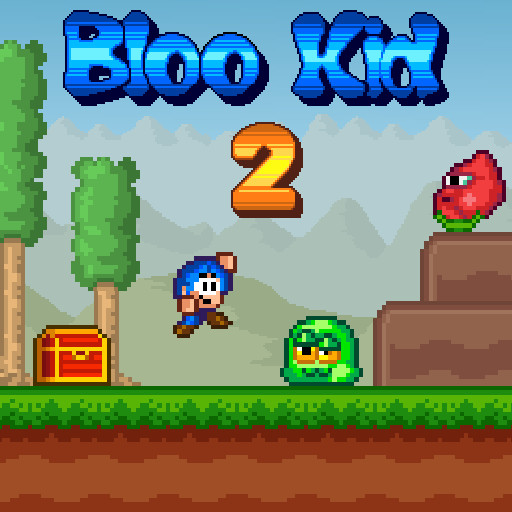 Bloo Kid 2
 Rodeo Riders
Poppy Time
Steve on the platform
Street Racing 2D
Rodeo Riders
Poppy Time
Steve on the platform
Street Racing 2D
 Bubble UP Master
 Spinny Gun Online
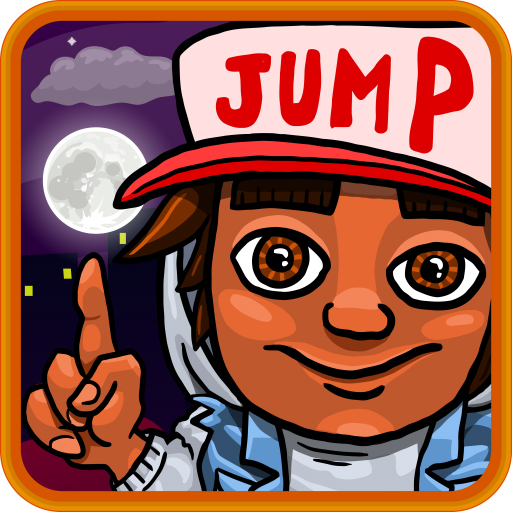 Stack Jump
 Animals Memory
Stick Hero
Cooking Fast 4 Steak
Slendrina Must Die: The House
Animals Memory
Stick Hero
Cooking Fast 4 Steak
Slendrina Must Die: The House
 Word Cross Jungle
 MineBlock Earth Survival
 Funny Shooter
 Bird Quest: Adventure Flappy
 Merge Grabber. Race to 2048
 Bubble Shooter Fruits Wheel
 starblast.io
 Impostor
Castle Puzzle
Impostor
Castle Puzzle
 Dino Run
 Mahjong
 Color Snake
 Kick the Buddy
Kung Fu Fury
Kick the Buddy
Kung Fu Fury
 Blob Runner 3D
 Tower Defense
 Right Color
 Pizzeria
 VR Roller Coaster
 Nubic Boom Crusher
 Knock Balls
Zombie Games
View more Gun Zombies
Noob: Zombie Prison Escape
Slendrina Must Die: The Forest
Sniper 3D City Apocalypse
Gun Zombies
Noob: Zombie Prison Escape
Slendrina Must Die: The Forest
Sniper 3D City Apocalypse
 Dead Zed
Let's Kill Jane The Killer: Don't Go to Sleep
Maze of Death
Alone II
Doomsday Hero
Slendrina Must Die: The House
Dead Zed
Let's Kill Jane The Killer: Don't Go to Sleep
Maze of Death
Alone II
Doomsday Hero
Slendrina Must Die: The House
 Medieval Defense Z
eSport Gamer Tycoon
Medieval Defense Z
eSport Gamer Tycoon
 Zombie Invasion Game
 Zombie Mission 4
 Zombies Survival
 Nubik vs Herobrin's Army
 Pixel Wars Apocalypse Zombie
Dead Zed (No Blood)
Pixel Wars Apocalypse Zombie
Dead Zed (No Blood)
 Brutal Zombies
 ZombieHunter.IO
 Zombie Drive
 Crazy Pixel Warfare
 Zombie Killer
 Pixel SWAT Zombie Survival
 Poligon War Zombie Apocalypse
 Super Sergeant Zombies
 Biozombie Outbreak
 Wild West Zombie Clash
 Zombie Days
 Zombies Vs Halloween
 Masked Forces Zombie Survival
 Pixel Apocalypse Infection Bio
Swat vs Zombies
Pixel Apocalypse Infection Bio
Swat vs Zombies
 Stupid Zombies Hunt
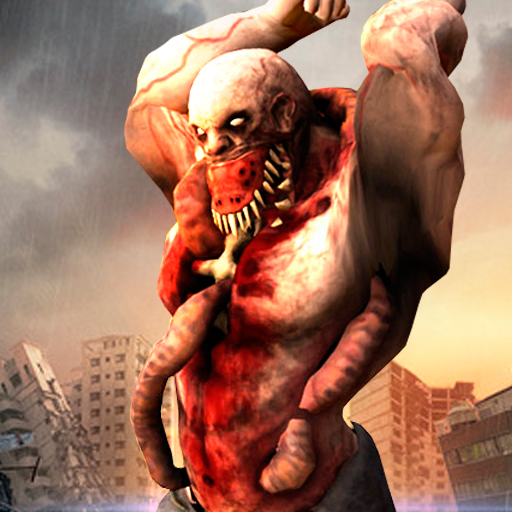 Zombie Survival Shooter
 Zombie Dead Highway
 Monster Truck vs Zombie Death Shooting Game
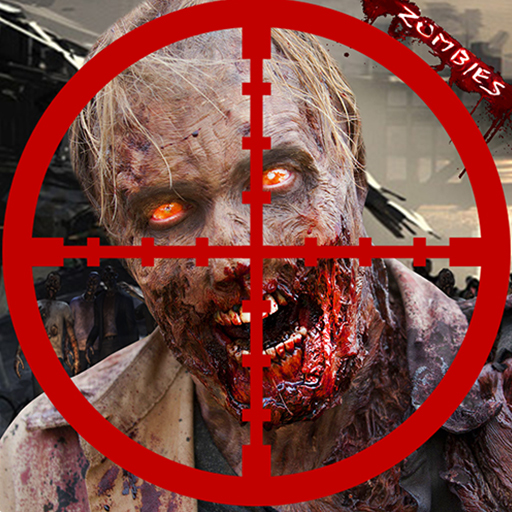 Dead City : Zombie Shooter
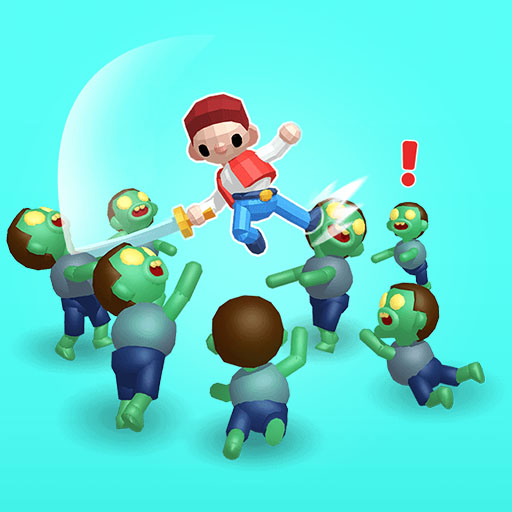 Zombie Killer Draw Puzzle
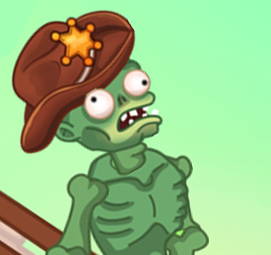 Cowboy Zombie
Stickman Games
View more
The Spear Stickman
 Super Stickman Sling
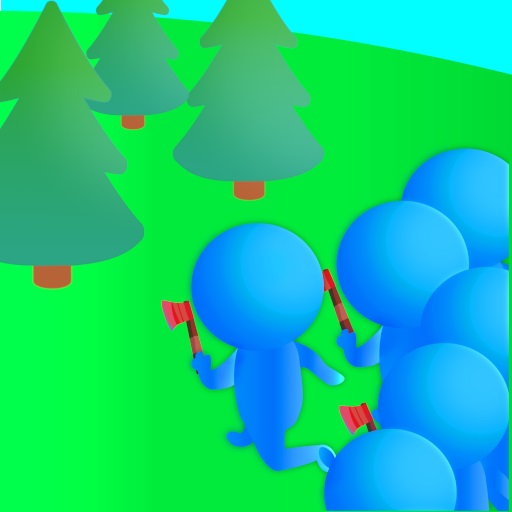 Crowd Lumberjack
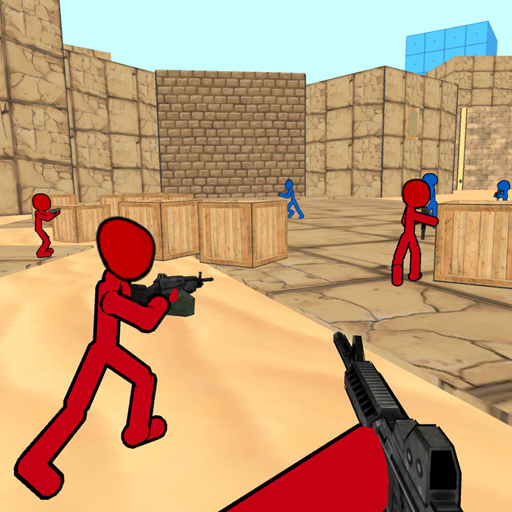 Stickman Counter Terror Shooter
Draw 2 Save - Stickman Rescue
Help Stickman Burn
Stickman Counter Terror Shooter
Draw 2 Save - Stickman Rescue
Help Stickman Burn
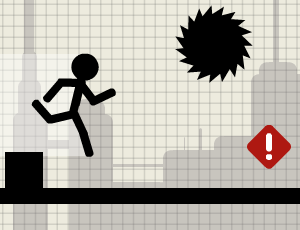 Stick Running
Stickman Warrior Fatality
Stick Running
Stickman Warrior Fatality
 Stickman Ragdoll Crash Fun
DOP Stickman - Jailbreak
Stickman Ragdoll Crash Fun
DOP Stickman - Jailbreak
 Tall Man Evolution
Stickman Golf Online
Stick Hero
Police Stick man wrestling Fighting Game
Turbo Dismounting
Tall Man Evolution
Stickman Golf Online
Stick Hero
Police Stick man wrestling Fighting Game
Turbo Dismounting
 Stickman Archer 2
 Stick War: Infinity Duel
Stickman Boxing KO Champion
Stick War: Infinity Duel
Stickman Boxing KO Champion
 Stickjet Challenge
Stickman Punch
Stickman Fighting 2 Player
Stickjet Challenge
Stickman Punch
Stickman Fighting 2 Player
 Stickdoll 2
Lost In Dimensions: The Beginning
Stickdoll 2
Lost In Dimensions: The Beginning
 Sparkman 2
Prison Escape
Sparkman 2
Prison Escape
 Stickman City Shooting 3D
Draw and Save Stickman
Stickman City Shooting 3D
Draw and Save Stickman
 Sky Diving
 Stickman War
 Stickman Peacekeeper
Stickman Fighter : Mega Brawl
Stickman Peacekeeper
Stickman Fighter : Mega Brawl
 Robin Hook
 Stickman Adventures
 Stacky Run
 Food Empire Inc
 Grenade Hit Stickman
 Stickman Battle Ultimate Fight
 Golf Park
 Umbrella Down
 Super Sniper Assassin
Animal Games
View more
Guess the Kitty
Protect My Dog 3
Run Rabbit Run
Snail Bob 2 html5
 Angela Toddler Feed
Rodeo Riders
Pixel Art 2
Angela Toddler Feed
Rodeo Riders
Pixel Art 2
 Sniper Wolf Hunter
 Wild Hunter Sniper Buck
 Horse Family Animal Simulator 3D
Animals Memory
Horse Family Animal Simulator 3D
Animals Memory
 Sniper 3D Assassin online
Angry Bull Attack Wild Hunt Simulator
Sniper 3D Assassin online
Angry Bull Attack Wild Hunt Simulator
 Giant Rabbit Run
Foxy Land
Giant Rabbit Run
Foxy Land
 Baby Chicco Adventures
Wild Animals Memory
Baby Chicco Adventures
Wild Animals Memory
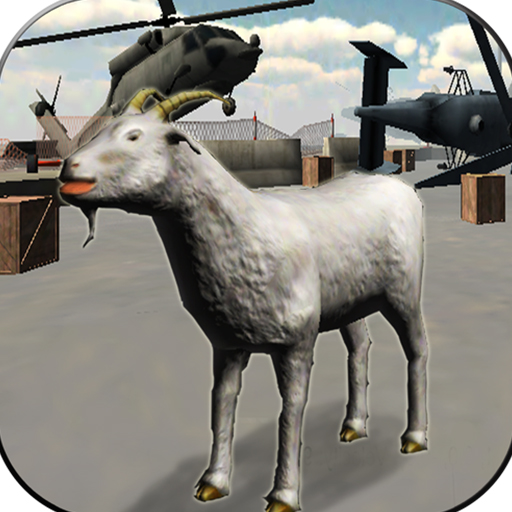 Angry Goat Wild Animal Rampage Game 2020
Protect My Dog
Zoo Trivia
Angry Goat Wild Animal Rampage Game 2020
Protect My Dog
Zoo Trivia
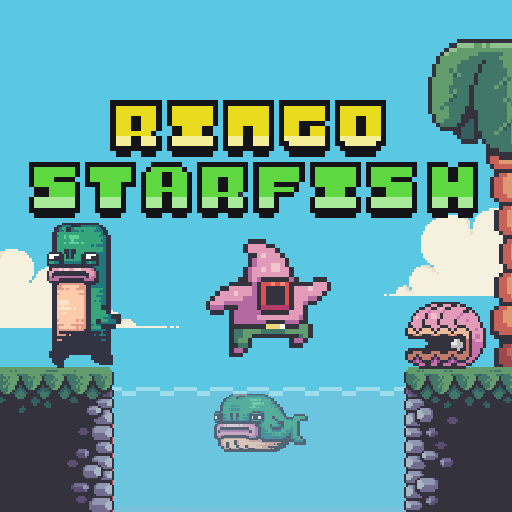 Ringo Starfish
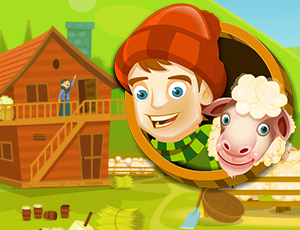 Sheep Farm
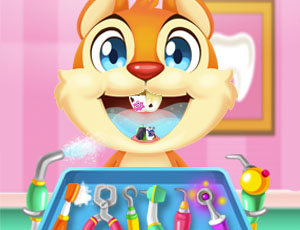 Crazy animals dentist
 Tiger Simulator 3D
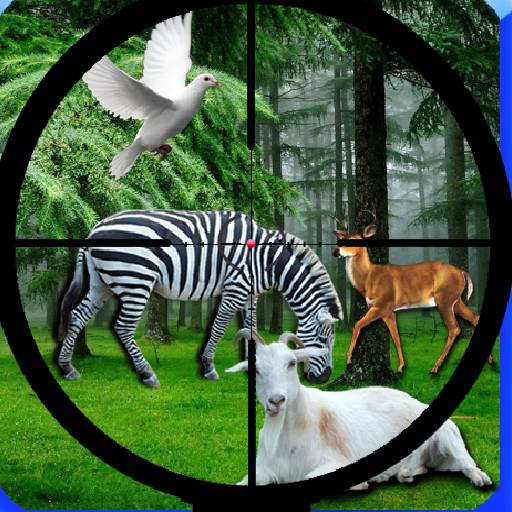 Real Jungle Animals Hunting
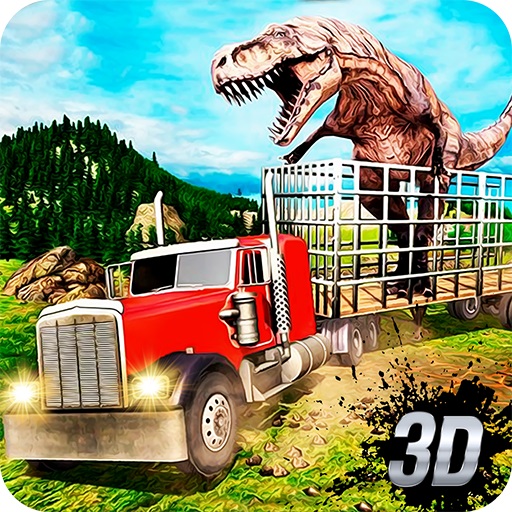 Zoo Animal Transport Simulator
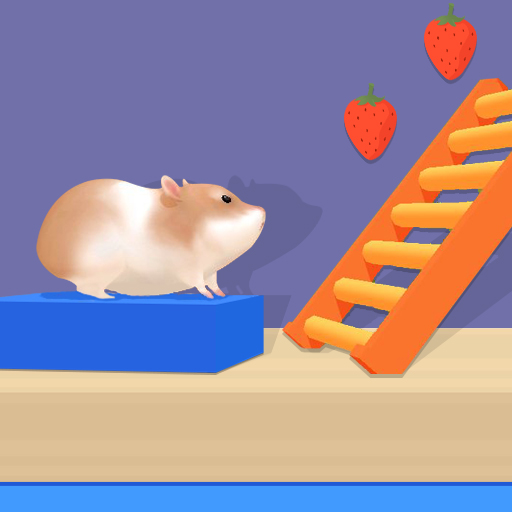 Hamster Maze Online
Pregnant Kitty Spa
Hamster Maze Online
Pregnant Kitty Spa
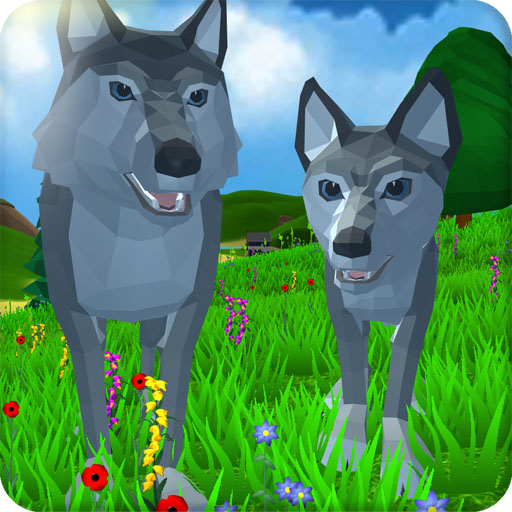 Wolf Simulator Wild Animals 3D
 My Cute Dog Bathing
 Fish War
Didi & Friends Coloring Book
Fish War
Didi & Friends Coloring Book
 Snake Challenge
 Fox Hunter Sniper JIGSAW
Mouse
Fox Hunter Sniper JIGSAW
Mouse
 Crazy Pig Simulator
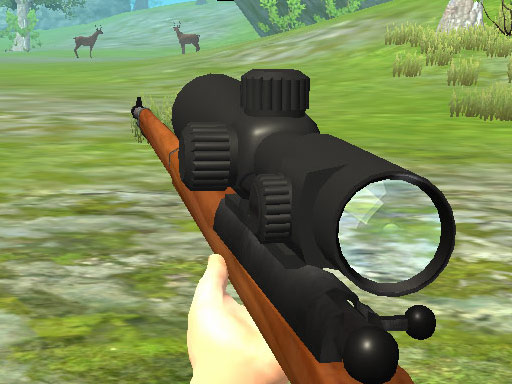 Hunter 3D
 Funny Cats and Dogs Jigsaw Puzzle
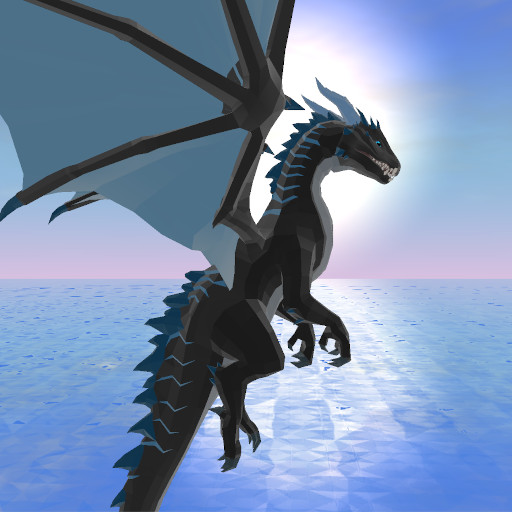 Dragon Simulator 3D
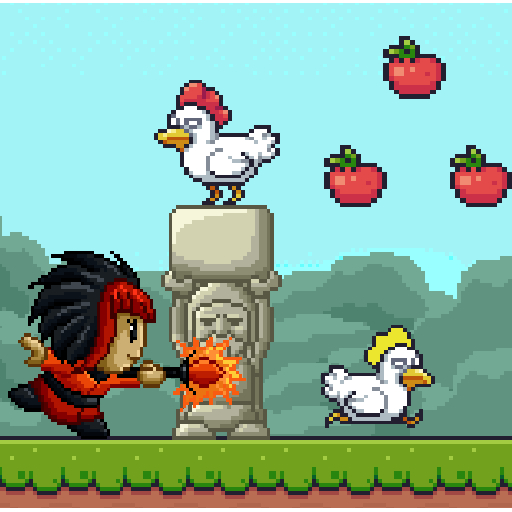 Capture the Chickens
Strategy Games
View more
Age of War
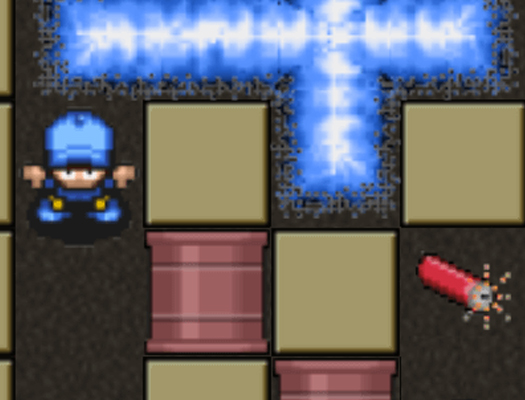 Playing with Fire 2
Medieval Defense Z
Playing with Fire 2
Medieval Defense Z
 Crusader Defence
Sheep Farm
Crusader Defence
Sheep Farm
 Pottery Store
 TINY TOWN
 Mathai's Tea Shop
 Clash Of Stickman Warrior
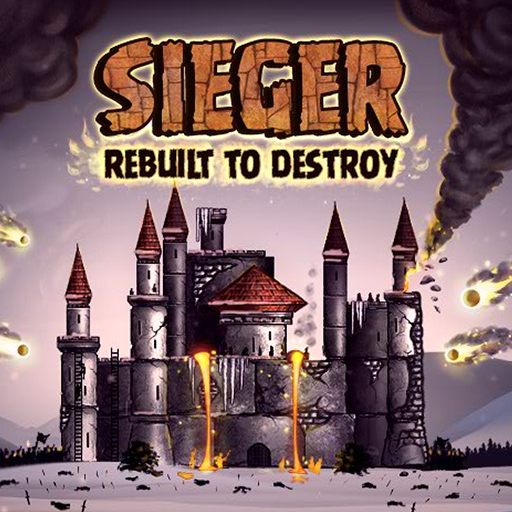 Sieger Rebuilt Destroy
Tower Defense
Sieger Rebuilt Destroy
Tower Defense
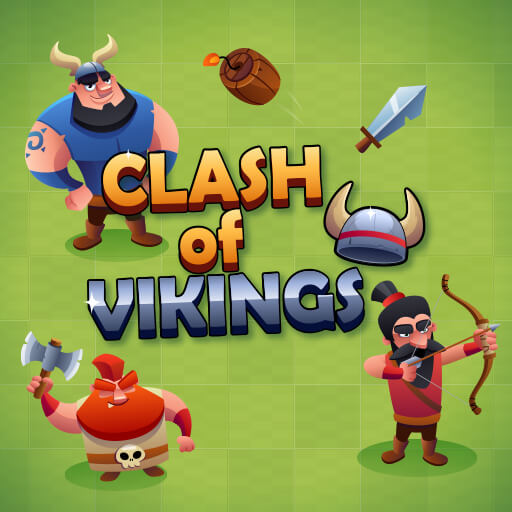 Clash of Vikings
Armour Clash
Clash of Vikings
Armour Clash
 The Bonfire Forsaken Lands
TPS Gun War Shooting Games 3D
Maggie Bread Rush
The Bonfire Forsaken Lands
TPS Gun War Shooting Games 3D
Maggie Bread Rush
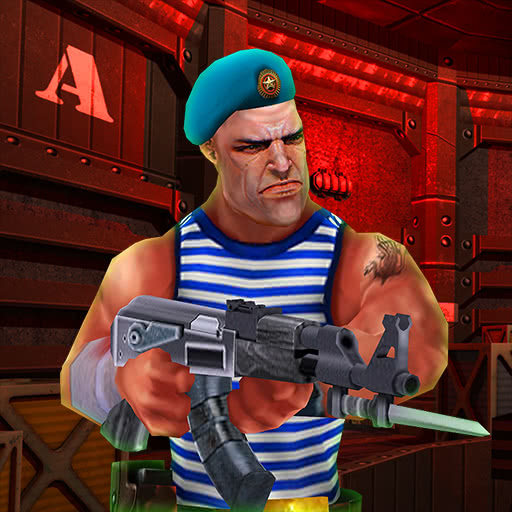 Rocket Clash 3D
 Pool Clash: 8 Ball Billiards Snooker
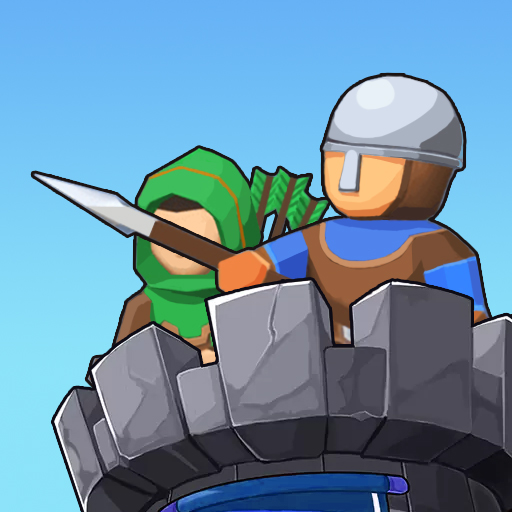 Epic Defense Clash
 Bomb It 6
 Castle Defense Online
 Towers vs Ice cubes
 Blackjack Master
 The Lost Planet Tower Defense
 Sochi Toilets : Backstage
 Archery Clash
 Clash of Tanks
 Airport Clash 3D
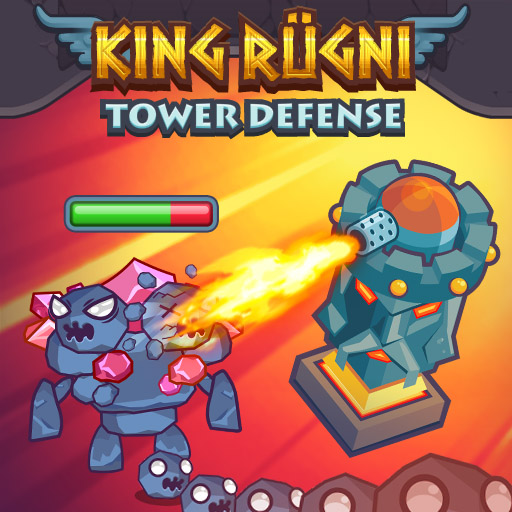 King Rugni Tower Defense
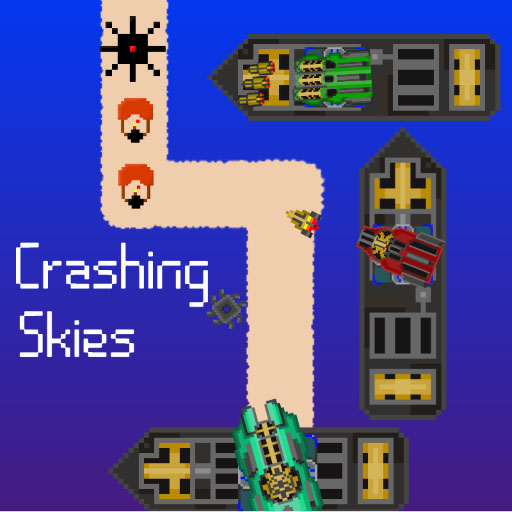 Crashing Skies
Kingdom Defense
Crashing Skies
Kingdom Defense
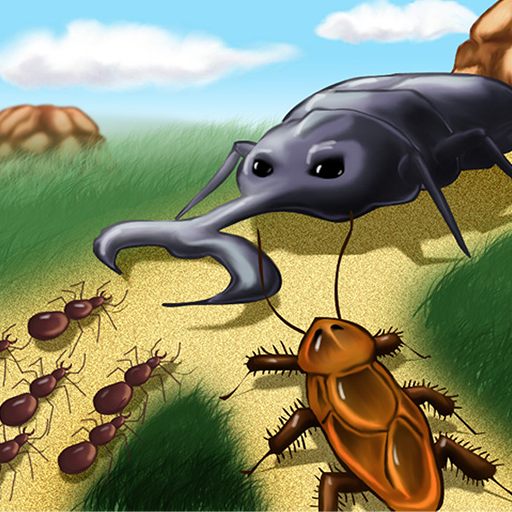 Bug War
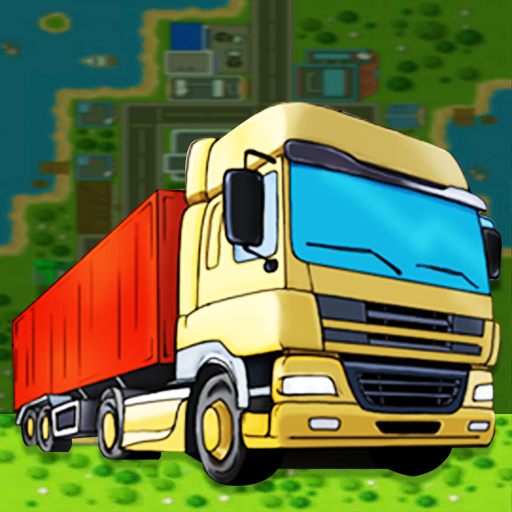 Building Rush 2
 Royal Offense 2
 Count Masters Clash Pusher 3D
 Join Skibidi Clash 3D
 Flying Farm
 Crusader Defense
 Blitz Tactics
 Airport Control
Free Online Games
Game'n'Game presents a vibrant platform where everyone can indulge in their favorite games, offering a perfect solution for those moments when you need a cheerful break. Whether it’s to unwind from work, school, or household duties, or to keep the kids entertained while you focus on other tasks, Game'n'Game's free online games are a convenient choice. These games require no extensive computer setup, installation drives, or time-consuming installations. Easily accessible through a browser, you can dive into a world of fun by simply visiting the website and selecting a game that catches your fancy. Online gaming on Game'n'Game is an excellent way to relax and have fun, either alone or with friends.
Game'n'Game's array of free games encompasses various genres to cater to every preference. Whether you're a fan of Crazy Games, Kizi, Poki, or similar sites, Game'n'Game's online platform brings all these experiences together. The collection primarily includes straightforward flash platformers, arcades, adventure games, and quests, ensuring there’s something for every user. The games feature simplified graphics, like the popular 'soccer heads', where renowned soccer stars execute moves without complex animations.
The games on Game'n'Game can be broadly categorized into:
- Games for Two: Including fighting games and sports competitions, playable either on one keyboard or online.
- Games for Boys: Featuring rovers, arcade games, and superhero-led adventures.
- Games for Girls: Encompassing charming animated games focused on character dress-up, dance arcades, and more.
These games are tailored to capture the audience's interest from the start, with most being designed for children. They boast colorful and vivid animations and are straightforward to play.
Some of the best free online games on Game'n'Game include:
- Dung Beetle Derby
- Recycle Roundup
- Zeus The Mighty
- Tomorrowland: Race to Tomorrowland
- Scientist Runner
- Yoda's Jedi Training
- Star Wars Rebels: Special Ops
- Planes - Jet Stream Racers
- LOLBeans.io
- Frozen Rush
For those seeking to unwind with an engaging game, Game'n'Game's free online games are an ideal choice. The platform has evolved from offering games with basic interfaces and graphics to now providing visually stunning and engaging titles. The site features a mix of timeless classics, popular games, and fresh releases, consistently updated. Whether you prefer arcade, racing, shooting, strategy, or kid-friendly games, Game'n'Game's HTML5 game range is expansive and diverse, ensuring there’s something for everyone.